Short answer
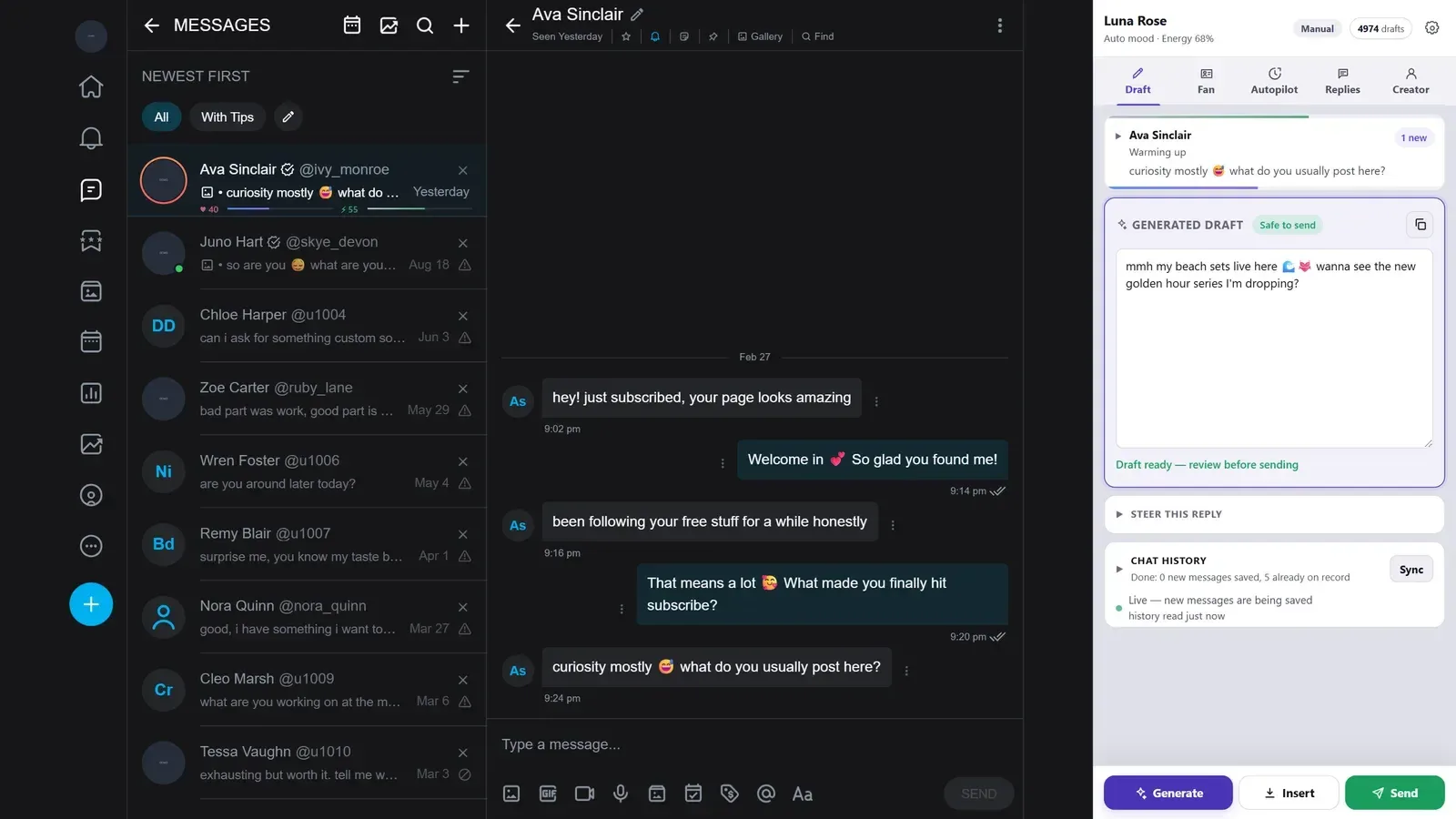
Sufflera's side panel runs in your own Chrome, inside the platform tab you are already signed into. It never asks for your OnlyFans, Fansly or Fanvue password and has nowhere to store one. No server signs into your account, and nothing is sent unless you press Send or switch the autopilot on yourself.
Where does Sufflera run?
In two places, and it helps to keep them apart.
- The side panel is a Chrome extension. It runs in your browser, next to the platform’s own page, in the session you opened yourself.
- The dashboard and the server keep your CRM: fans, notes, history, personas. They write the drafts.
The server never connects to OnlyFans, Fansly or Fanvue. Everything that happens on the platform happens in your browser tab, and only while you have it open.
What does it read, and what does it never touch?
The panel reads the conversation that is open in front of you: who the fan is and the messages in that chat. Those are saved to your Sufflera account, so the next draft knows the history. When the autopilot is working through a list, it reads the chats it opens, in the same tab, the same way.
What it does not have:
| It never… | How you can tell |
|---|---|
| asks for your platform password | The panel signs in with your Sufflera email and password only. There is no field, and no place in the database, for a platform login |
| reads your platform cookies | The extension has no cookies permission in Chrome |
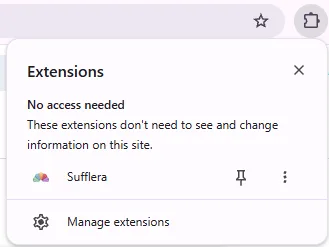
| works on other websites | It only has access to OnlyFans, Fansly, Fanvue and Sufflera. On any other site Chrome shows it under No access needed |
| runs when the tab is closed | Nothing runs without the platform tab open. A reload or a closed tab stops the autopilot |
Your conversations and CRM records are not used to train any model. Drafts are written by an AI model provider on terms that exclude training on what you send.
Does anything happen automatically?
Not by default. A new creator starts on Manual: a draft appears when someone presses Generate, and a message goes out when someone presses Send. How a draft is put together: from fan history to draft.
Automation needs several deliberate steps. A fan has to be on a mode that allows it, a manager has to allow automatic sending for that creator, and someone has to press Start in the panel, in that tab. Close the tab and it stops.
The full picture, with the four situations where it always waits for a person, is in the post on AI-generated models.
What about platform rules?
Platforms set their own rules on assisted and automated messaging, and some restrict it. Whether your use is allowed is for you to check, and that risk stays with you; section 6 of the Terms of Service says so in full.
What Sufflera controls is how much it does without you: nothing automatic until you choose it, a person in the loop by default, and the choice made fan by fan if you want. One thing to know before enabling automatic sending: when the autopilot sends, it presses the platform’s Send button from inside the browser, and a platform can technically tell that click from a person’s.
Install in three steps
- Add it from the Chrome Web Store. The install page has the link. It works in Chrome, Edge, Brave and Arc on a computer.
- Pin the icon. Open Chrome’s puzzle-piece menu and pin Sufflera, so the panel is one click away.
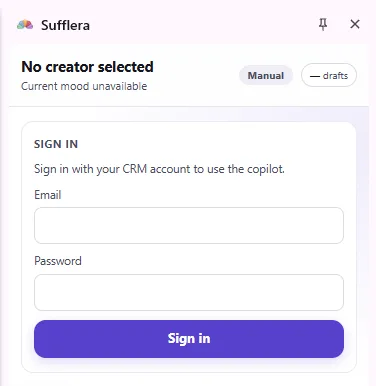
- Sign in. Click the icon, and sign in to the side panel with your Sufflera email and password. Signed up with Google? Set a password first under Settings → Account.
 2. Pin it
 3. Sign in
Updates
The Chrome Web Store version updates itself. After an update, reload the platform tabs you had open so they pick up the new version. If your team prefers to decide when to update, the install page also offers a zip you install and replace by hand.