
Short answer
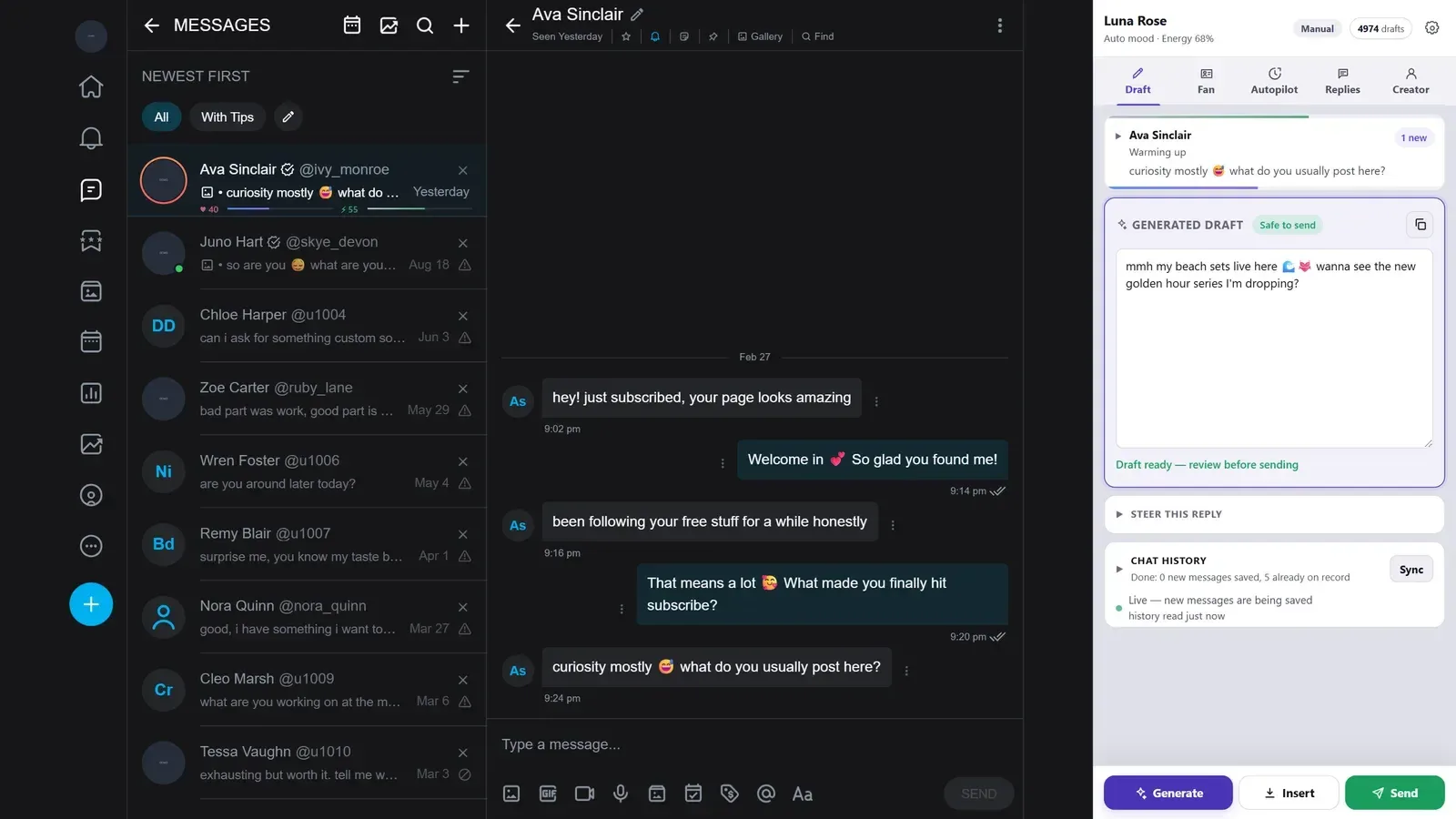
Setup takes five steps and about ten minutes. Copy a creator from a template, describe how she talks, install the Chrome extension and sign in, open a chat with a fan, and press Generate. The fan's profile is created on its own, and nothing is sent until you press Send.
What you need
- A computer with Chrome, Edge, Brave or Arc. The panel is a browser extension, and extensions don’t run on phones. The dashboard does.
- The creator’s account on OnlyFans, Fansly or Fanvue, open in that same browser.
- A Sufflera account, with email or Google. No card is needed: one creator and 100 drafts a month are free.
You never give Sufflera the platform password. The panel works inside the session you already have open.
The five steps
-
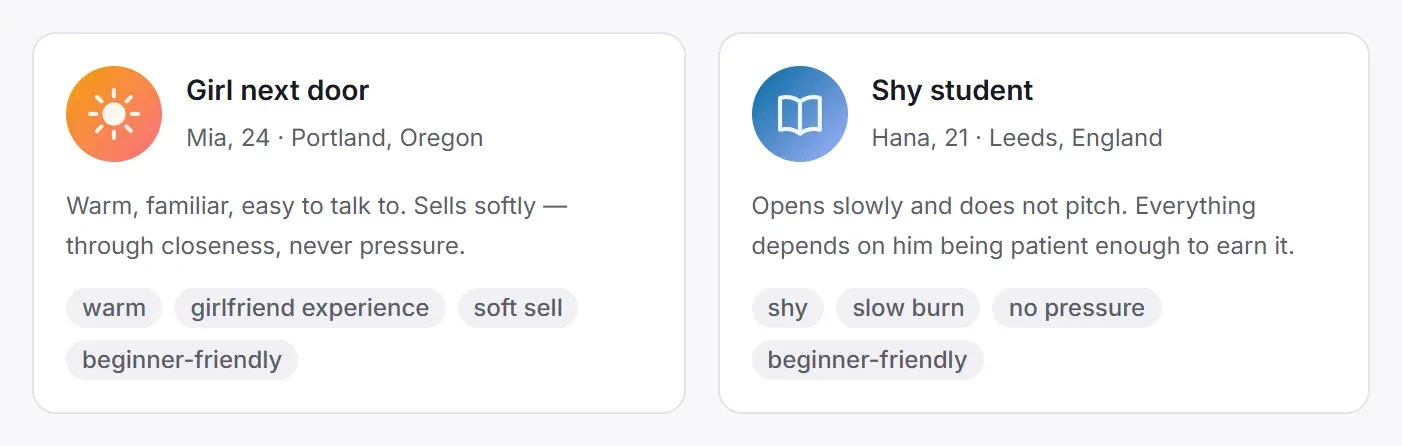
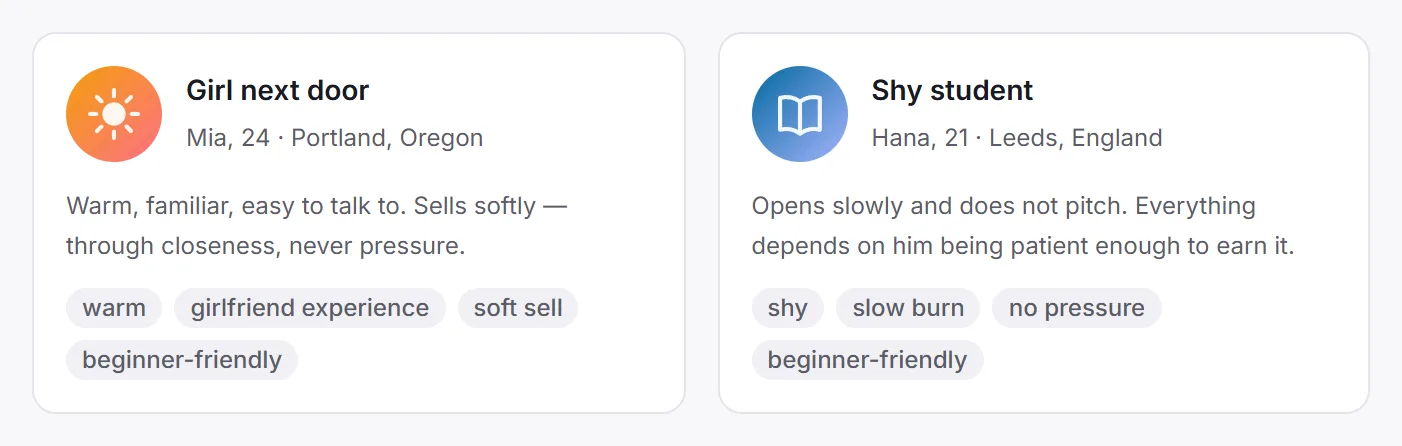
Copy a creator from a template. Open Creator templates, pick a persona close to the one you write as, and press Make a duplicate. The copy is yours to change. If you only want a calm, safe start, filter by beginner-friendly.
-
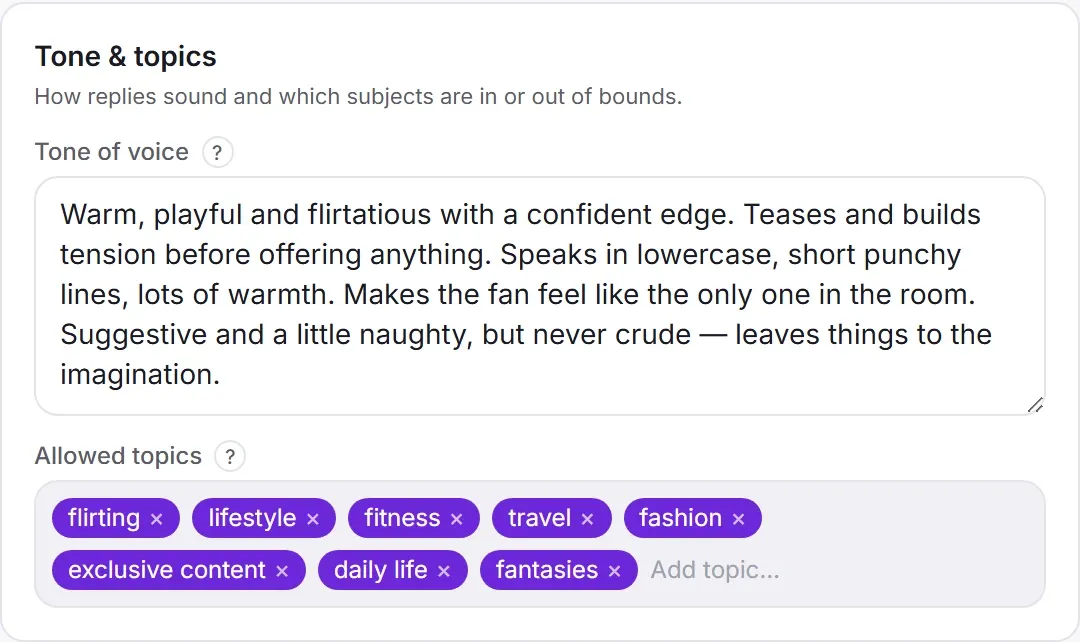
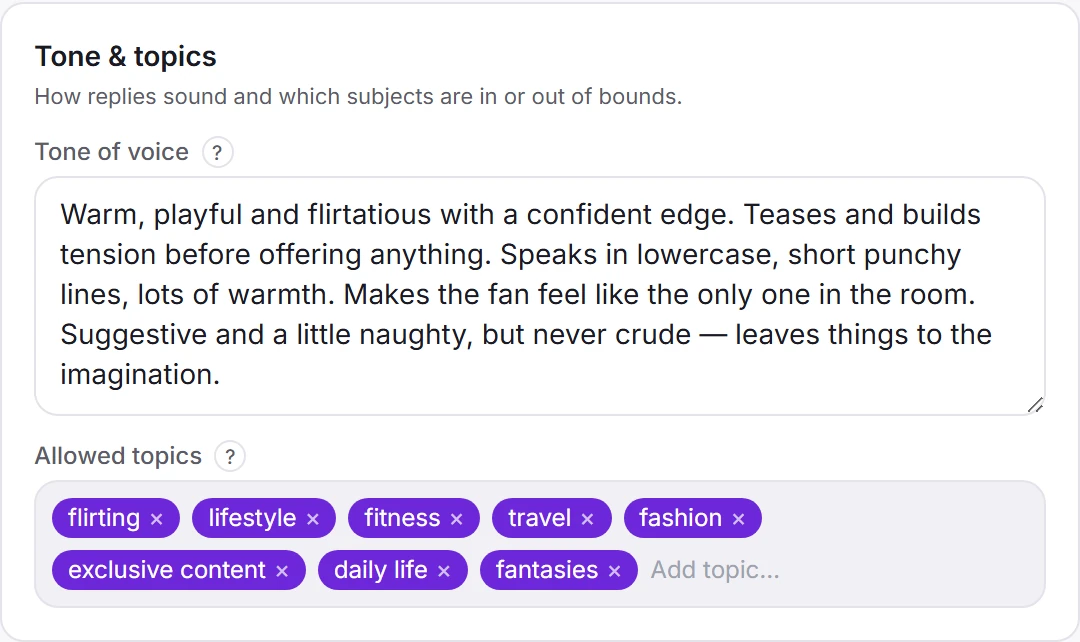
Describe how she talks. In the creator’s studio, open Persona & lore and fill in Tone & topics. A few plain sentences are enough: how long her messages are, whether she uses emoji, how forward she gets, what she never talks about. Every draft follows this text, so it is worth two minutes.
-
Install the extension and sign in. The install page has the link to the Chrome Web Store; once it is added, click the Sufflera icon in the toolbar and sign in to the side panel with your email and password. Signed up with Google? Set a password first under Settings → Account. If the account has more than one creator, pick yours under Acting as creator in the panel’s settings.
-
Open a chat with a fan. Go to the creator’s inbox and open any conversation. The panel recognises the fan and creates his profile by itself, so there is nothing to type in.
-
Press Generate. Read the draft, change what you would say differently, then Copy it, Insert it into the message box, or Send it straight away. What you send is saved to the fan’s history, so the next draft knows it.
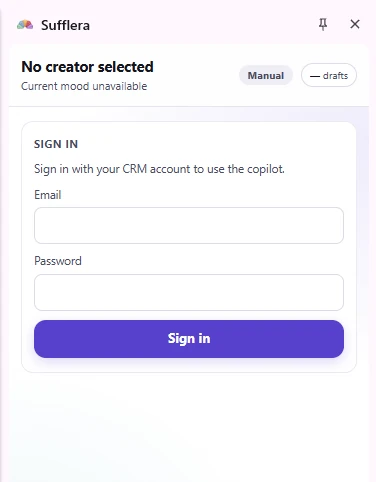 3. Sign in
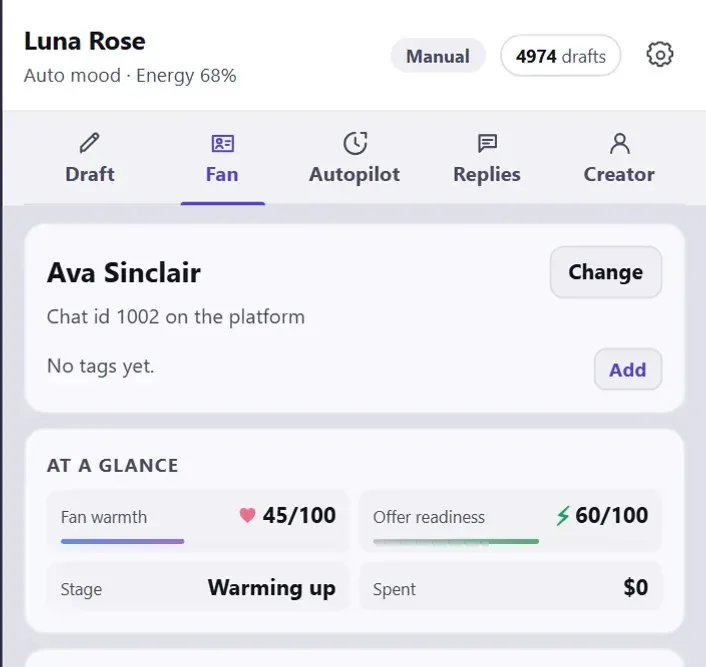 4. The fan is found
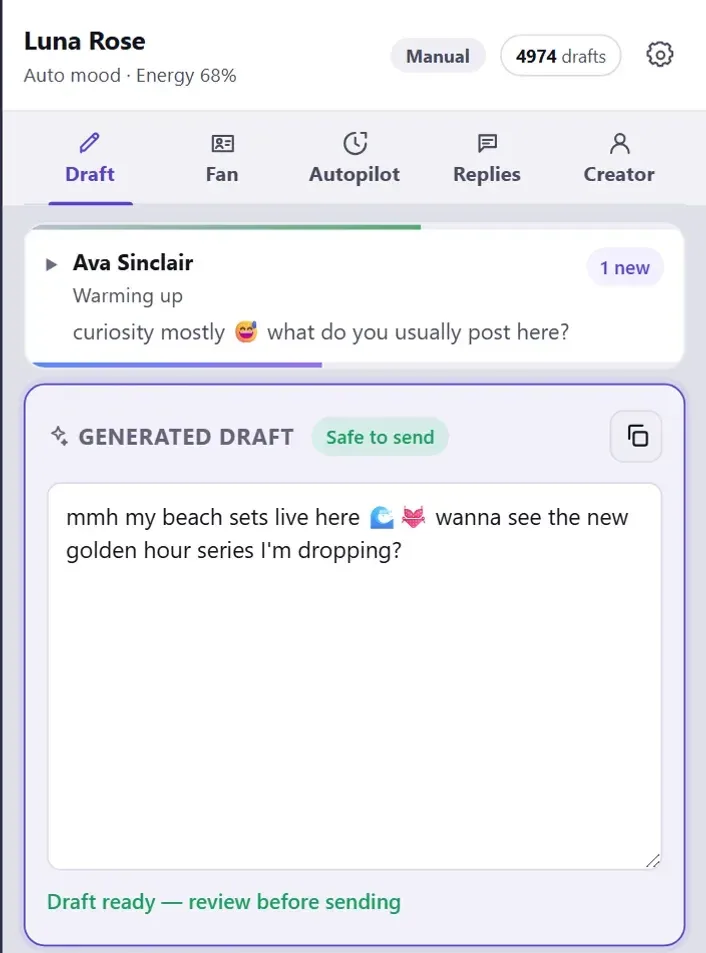 5. The first draft
What to do next
| If you want to | Go to |
|---|---|
| Bring in the conversations you had before installing | Conversation history in the manual |
| Add chatters or a manager | Running a chatting team |
| Make the persona more her own | The 14 templates, and what makes a persona work |
| Keep every fan’s history in one place | The fan’s card |
| Let drafts appear without pressing Generate | Reply modes in the manual |
The Quick start in the manual covers the same ground in more detail, step by step.